‏إظهار الرسائل ذات التسميات ios. إظهار كافة الرسائل

السبت، 10 سبتمبر 2016

How To Increase IPhone Storage

An unusual hack which can dramatically increase the available storage space on your iPhone has been discovered.
The trick is capable of freeing up gigabytes of space on your phone, which always come in handy if you're using a lower-capacity device.
To see the trick in action, go to Settings>General>About, and scroll down to 'Available'.
Check how much storage you have left, and then head to the iTunes Store.
Search for a film which is bigger than the space left on your phone. Something like The Lord of the Rings: The Two Towers (which clocks in at 6.84GB) should do the trick.

Then click 'Rent' at the top of the page. Don't worry - if you don't have room, you won't be charged, and an error box saying you don't have enough available storage will appear.

After you've clicked 'OK', head back to settings and check your available storage again. It should have increased, potentially quite significantly.

Before I tried this trick, I had 500MB of free space. After the first try, it increased to 848MB. It reached 1GB after the second try, and 1.3GB the third. In a minute of trying to rent the film, the phone gained 800MB of available storage space, a fairly impressive gain.
The trick was discussed on Reddit's iPhone forum, where some users with higher-capacity phones said they had gained up to 4GB of space in just a few tries.
It's not completely clear what causes the increase in available space, but it seems like the attempted download causes the phone to clear its caches.
This is a continuous process which is always happening on your phone, and the device will do it automatically when it's running low on space. This trick appears to force the phone to have a cleanout, freeing up a lot of space in one go.
Try the tricks and see for your self.

Apple’s iPhone 7 vs. iPhone 6s Compared

The newest iPhones bear a striking resemblance to the past two models, but a lot has changed.

Apple's new iPhone and Watch may not look all that different, but there are some big changes, for better or worse.

At a peep, AppleInc.’snew iPhone 7 and 7 Pluslook a lot like the past year’s iPhone 6s and 6s Plus. The biggest visual change: bigger camera bumps on the back. There is also a new high-gloss “jet black” finish that offers a mirror-like (and likely fingerprint-prone) surface.

Inside, the new iPhones bring better battery life and significant performance upgrades over their predecessors. But are they enough to get you upgrade? Or switch to Apple from an Android phone?

Design

The height, width and thickness is the same for the two new phones and their predecessors, although—fun fact—the new ones are actually a tad lighter.Design wise, the biggest change is that the new iPhones are finally water and dust resistant. Apple says the iPhone 7 models get an IP67 rating, which means they can survive being submerged up to 1 meter underwater for as long as 30 minutes.


The home button is different, too. It is solid state, so you don’t push it in. Instead, a new “taptic engine” responds to your touch, much like the keyboard on the Retina MacBook. It also allows for the phones to vibrate in different patterns and intensities when you’rereceiving a text message, interacting with widgets and other actions.

Screen

Apple's new iPhones have a number of new features. Here are the ones you should really pay attention to. Photo: Apple.

The screen sizes remain the same—iPhone 7 will have a 4.7-inch display and iPhone 7 Plus will have a 5.5-inch display—nestled in the same fashion, with a noticeable bezel surrounding them. The resolutions also remain the same: 1,334 x 750 pixels on the small one, 1,920 x 1,080 pixels on the large one.

But the iPhone 7 and iPhone 7 Plus have screens that are 25% brighter than its predecessor, and they’ll both display a wider color gamut that Apple says will allow for more detailed gaming and photos.

Ports

The Lightning charging port remains in place. And as always with iPhones, there is no removable battery or MicroSD card slot for expanded storage.

However, the headphone jack is gone, enabling the iPhone 7 to have dual speakers, rather than the single speaker found in all previous iPhones.


Storage
The entry-level iPhone 7 and 7 Plus will have 32GB of storage, up fromthe measly 16GB base storage found on previous iPhones. On the high side, you can now get a 256GB model.

Camera
The camera setup has beentotally redesigned, with a new image sensor, a 12-megapixel resolution, optical image stabilization across both the iPhone 7 and iPhone 7 Plus.

The iPhone 7 Plus has a dual-lens rear camera that provides additional zoom and depth-of-field capability.The 7-megapixel front-facing camera on both iPhone 7 models is also new.

Battery Life

The iPhone 7 will also have the longest battery life found in any iPhone, said Apple. The iPhone 7 bested the iPhone 6s by about two extra hours in Apple’s tests, and the iPhone 7 Plus beat the iPhone 6s Plus’ batterylife by about an hour.

Pricing
Apple priced the new phones at its standard top tier: The iPhone 7 starts at $649, while the 7 Plus starts at $749. Sticking to its tradition, Apple cut $100 off the price of last year’s phones.

Preorders for each model being Friday Sept. 9, and the new iPhones start shipping Sept. 16.

Source The Wall Street Journal

الاثنين، 13 يونيو 2016

List For iOS 10 Compatible Devices

Apple Announced iOS 10 At WWDC 2016 Event In San Francisco.
Apple Says iOS 10 Will Be Biggest Release Yet.
Here's The Full List Of Devices That Can Be Upgraded To iOS 10.


iPhone:-
  • iPhone 6s
  • iPhone 6s Plus
  • iPhone 6
  • iPhone 6 Plus
  • iPhone SE
  • iPhone 5s
  • iPhone 5c
  • iPhone 5

iPad:- 


  • iPad Pro 12.9-inch
  • iPad Pro 9.7-inch
  • iPad Air 2
  • iPad Air
  • iPad 4th generation
  • iPad 3rd generation
  • iPad 2
  • iPad mini 4
  • iPad mini 3
  • iPad mini 2
  • iPad mini
iPod:-

  • iPod touch 6th generation
  • iPod touch 5th generation

iOS 10 Features!

Apple Announced iOS 10 At WWDC 2016 Event In San Francisco.
Apple Says iOS 10 Will Be Biggest Release Yet.
There Are Many New Features In iOS 10.


The Top 10 Features Of iOS 10 Are As Follows:-

1.     Messages:-Send a message in your own handwriting.
Send a message or photo that remains hidden, then simply swipe to reveal it.
Swap out words with emoji all with a simple touch.
2.     Siri:-Now open apps with Siri. Siri works with your favorite apps from the App Store, so you can ask it to book a ride through Lyft, or send money to someone with Square.
3.     Interactive Notifications:-View photos and videos or respond to a message right in your notifications.
4.     Multilingual Typing:-Now you can type in two languages at the same time without having to switch between keyboards.
5.     Apple Music:-The simple, intuitive design makes it even easier to enjoy your favorite songs. You can also view the lyrics while you’re listening to them.
6.     Home App:-In home app you turn on lights, unlock doors, and even raise your window shades all at once if you like.
7.     Apple News:-Easily find the stories that matter to you most, in distinct sections of the beautifully redesigned News app.
8.     Photos App:-The Photos app can help you rediscover cherished memories like a weekend hike or your baby’s first birthday and even create beautiful movies out of them.
You Can Search your photos by the people or things in them, like a beach, a football game, or a puppy.
9.     Apple Maps:-Maps can make proactive suggestions for where you’re likely to go and the fastest way to get there.
Book a table through apps like OpenTable, and a ride with Uber all within Maps.
See what’s around the corner and easily find the closest places for gas, food, or coffee. Maps even tells you how much extra time it will take to arrive.
10. Lock Screen:-Use 3D Touch in apps like Calendar, Weather, and Stocks for a quick glance at the information you need in a Lock Screen.

Check Full List Ff iPhones, iPads & iPods That Can Be Upgraded To iOS 10

الأربعاء، 30 مارس 2016

Watch Microsoft's Build 2016 Event Live Streaming Here!


السبت، 26 مارس 2016

Reliance Free 500 MB 3G Internet

\

Get 500MB FREE On Reliance Instacare App

Steps:-
  1. Download & Install Reliance Instacare App.[Android||Windows||iOS]
  2. Register An Account.
  3. Verify Your Reliance Mobile Number.
  4. Wait For Complete The Process.
  5. After This You Will Get 500MB 3G/2G Data In Your Register Mobile Number.
  6. Done!Enjoy!!!


Features:-
1. Recharge & pay bills for any Reliance number (both pre & post login).
2. Add multiple members (postpaid and/or prepaid).
3. Activate/Deactivate VAS packs.
4. Track your data usage.
5. Create service requests.
6. Check balance & outstanding.
7. Buy packs.
8. Get bill due date / balance details.
9. Download bills.

10. Subscribe to latest caller tunes.

الاثنين، 21 مارس 2016

Apple iPhone SE Now Official, A 6s/6s Plus In A 4-inch Body

Apple iPhone SE Now Official, A 6s/6s Plus In A 4-inch Body

Apple has just announced its latest products, one of them is the much-talked Apple iPhone SE, which the Cupertino giant bragged as the most powerful four-inch smartphone today.

Read more »

السبت، 12 ديسمبر 2015

Huawei Watch Officially Unveiled in the Philippines

Huawei Watch Officially Unveiled in the Philippines

After its pre-order announcement about two weeks ago, Huawei Device Philippines officially unveiled in the country the long-awaited and much-anticipated smartwatch of the year, the Huawei Watch.

Read more »

الجمعة، 4 ديسمبر 2015

Power Mac Center Launches Office 2016 for OS and iOS Devices

Power Mac Center Launches Office 2016 for OS and iOS Devices

Power Mac Center, the premium partner of Apple in the country, together with Microsoft Philippines, has launched in the local market the latest Office 2016 for OS and iOS devices.

Read more »

الأحد، 8 نوفمبر 2015

How to delete browsing history on iPad

How to delete browsing history on iPad

Have you been looking for a way to delete browsing history on Ipad but don’t really know to go about it, well infopyt is here to provide you with some steps which you can follow to delete the browser history. We are going to make two methods via safari and settings.
There are two ways to delete browsing history on iPad running iOS 7 - one via the Safari web browser itself, and the other using the Settings app. They are both very simple. Here we explain how to delete the web browsing history on an iPad.

Step 1:

Delete browsing history on iPad, using Safari


Procedures:
·        Open up Safari by clicking the Safari icon in the bottom lefthand corner of your iPad screen.
·        Now click the bookmarks icon, found in the top of your browser window, just to the right of the address bar. It looks like, well, a book.
·        Select the 'History' option. You'll now see a list of all the pages you have visited, together with the day and date on which you went to that site.
·        At the bottom of the light, you'll see the option 'Clear'. Hit this.
You'll now be given two options 'Clear History' or 'Cancel'. To delete your browsing history, simply hit 'Clear History'. And that's it.


Step 2:

Delete browsing history on iPad, using Settings

·        Open up the Settings icon on your homescreen.
·        Scroll down on the lefthand side until you find an entry for Safari. Click it.
·        You'll see the option to Clear History, just above Clear Cookies and Data. Select it.
·        You'll be asked to confirm your choice. Agree to this and your web browsing history will be gone forever.
·       


  === Finished
Enjoy!

How to passcode lock folders on iPad – With an app


We are going to show you how to pass code lock a folder on your iPad. PLUS and also how to pass code lock your iPad to a single app, and how to pass code lock your iPad.


so how to passcode lock a single folder on your iPad?

So let us check on how we can lock a folder or an app on our IOS
Have you tried to lock individual folders? The truth is that one can't. passcode lock an individual folder on your iPad without installing a third-party app. It just isn't something for which iOS allows. We do wonder if this will change in future.
However, even today there are some third-party options. We'll get into that later on. First - here is what you can lock on your iPad.  It's possible this may solve the issues you are having if you want to keep secret the contents of a single folder.

What you can passcode lock on iPad

Lock iPad to single app

If you want to allow someone - a child perhaps - to use a specific app on your iPad, but you don't want them to access the photos and email, you can lock your iPad to a single app.  
Go to Settings, General, Accessibility, and select Guided Access. Flip the switch and tap Set Passcode to create a four-digit passcode. Make sure you can remember it!
Now in the app you want to lock into Guided Access mode and launch it. Once it's up and running, quickly tap the home button three times.
When you're ready to lock to the app, press the Start button in the top righthand corner of the screen. When it's time to put your iPad back to normal, triple-click the home button and enter the four-digit passcode.

Passcode lock your iPad

Alternatively, you could passcode lock the whole iPad. Really, this is only sensible, and you should do it for your iPad regardless of whether you choose to passcode lock an individual folder. It will prevent anyone who happens upon your iPad opening it up.
Go to Settings, General, Passcode Lock. You'll be asked to input a four-digit code on the onscreen display. Again, make sure it is one you can remember. You'll need to use it to unlock your iPad every time you use it.
ENJOY!

How to play iOS apps on PC the ipadian

Do you want to run your IOS apps on your PC then you have come to final point. The best way to use your favourite iOS apps on your laptop or PC is by using a simulator. The best way we've found is iPadian: a free Adobe AIR-based iPad simulator which allows you to run more iPhone- and iPad apps in an iPad-like interface on your own PC desktop.


 We are going to show how to run IOS applications on your PC or Laptop on this article


But there are some important draw backs: you can't access the Apple App store, so you're restricted to iPadian's own custom app store. If any reader knows of any iPhone- or iPad simulation software that can run all apps we'd love to hear from you in the comments below.

With iPadian's own store there are plenty of apps, but it's still quite limited. Choose the Games category, for instance, and you'll find fewer than 10 apps on offer.
There are also interface issues which will affect most PCs and laptops running any simulator of this type. 

The iPad is designed for touch, so using anything similar on a desktop, with just a mouse and keyboard, is never going to be ideal. You can still find your way around by clicking on buttons, but it all feels a little clunky, and the program doesn't allow you to use the mouse to simulate swipes (although spinning the mouse wheel will scroll occasionally).

That's the bad stuff, here's what's great. iPadian provides a complete iPad-like environment: a web browser, email client, social networking apps, music, videos, photos and more, with plenty of free apps to explore.
                     
And, surprisingly, it's portable, so there's no hassles with installation (as long as your system is already equipped with Adobe AIR, anyway). iPadian works with Windows XP/Vista/7/8, Mac OS X and Linux.

How to run iOS apps on PC


 Follow the steps below to run IOS apps on your PC:

   
  I.        First of all download iPadian . Unzip the download file, run iPadian.exe. Some security software incorrectly pings iPadian as malware - if you have downloaded from a reputable source such as PC Advisor Downloads you need not worry - just click through to download.

   II.        During the install process you may need to install Windows .NET Framework. When prompted to do so, do so. You'll also be asked to update to the latest version of Adobe Flash. This is important for security reasons.

  III.        At the end of the install iPadian will open up. It will take you to a desktop that is a cross between Windows and iOS. Major apps such as Facebook and YouTube are already installed. Go to the 'App Store' to install more apps.

Just open up and use apps as you would on your iPad.
 
When you want to return to Windows simply click the Windows symbol in the bottom right hand corner.
And that's it! iPadian is not a silver bullet if you want to use on your laptop the iPad apps you installed on your iPad. But it is a good simulator.

Done.
Enjoy!


الثلاثاء، 3 نوفمبر 2015

Globe Reveals Postpaid Plans for Apple iPhone 6s and iPhone 6s Plus

Globe Reveals Postpaid Plans for Apple iPhone 6s and iPhone 6s Plus

Globe Telecom announced that they will be offering the Apple iPhone 6s and iPhone 6s Plus, the latest and most powerful iPhones ever, beginning on November 6, 2015.

Read more »

Smart Unveils Postpaid Offerings for Apple iPhone 6s and iPhone 6s Plus, Free Starting at Plan 2000

Smart Unveils Postpaid Offerings for Apple iPhone 6s and iPhone 6s Plus, Free Starting at Plan 2000

Smart Communications Incorporated, the mobile arm of the Philippine Long Distance Company, announced that it will be offering the most advanced Apple iPhones ever, the iPhone 6s and iPhone 6s Plus, starting on November 6.

Read more »

الخميس، 29 أكتوبر 2015

Apple's iphone juggernaut rolls on, contributing 63% of its $234 billion revenue


Apple delivers Yet another Blockbuster Quarter
1)Apple stunned Wall street as it continued to show robust earnings quarter after quarter as it exceeded expectations in Q4, as its net income totaled $11.12 billion, up from $8.47 billion in the year-ago period with profits rising 31%. Not only that Apple also managed to increase

2)It also managed to increase the  iPhone’s average selling price during the quarter to $670, compared with $662 last quarter, at a time when smartphone prices  have seen crashing over the last 6 months.

3)Apple's gross margin was 39% compared to 38% in the year-ago quarter.Gross margin is a closely watched measure of profitability. It sold 48.04 million iPhones in its fiscal fourth quarter. Once again the iPhone was instrumental in Apples success which accounted 63% of revenue in this quarter

4)Fiscal 2015 was Apple’s most successful year ever, with revenue growing 28% to nearly $234 billion.In 2014, during the  quarter Apple sold a record 74.46 million iPhones.

5)The biggest news was that Apple was growing at the expense of Google's android.Apple's CEO announced that 30% of consumers who bought an iPhone replaced a smartphone running Google Inc.'s Android operating system during the quarter. He said this is the highest rate of Android "switchers" that Apple has ever measured. This is the first time " Android has seen" such a switch to iOS OS according to Apple

6)International sales accounted for 62 percent of the quarter’s revenue. Apple said its quarterly profit rose 31%, sparked by strong demand for iPhones in China.Sales to Greater China, which includes Hong Kong and Taiwan, rose 99% to $12.5 billion.

You would also like to read :Why iphone and ipads cannot be manufactured in US

الثلاثاء، 27 أكتوبر 2015

The US Government is one of Apple's biggest Customers :Billing from Govt contracts

Apple does a huge chunk of work for the US  Government  and  it has been working with the US Defence, Security and Exchange Board, Federal divisions, and NASA

"apple's list of govt contracts"
Since 2000 Apple has signed on a record 1299 contracts with the US Government with 75 being signed only in 2014 , with a guaranteed amount of $30.3million(source)


الجمعة، 9 أكتوبر 2015

HOW TO ROOT ANDROID DEVICE

 ROOTING

How To Make Your Android Phone Run Faster With This Little Tweak.this little trick am about to show you will enable your android phone or device to run more faster than it used to.if you are making use of your android phone or device and it is very slow, then you can use this trick to make it run faster when using it to carry out some task like games, internet browsing, app usage, sharing of files via Bluetooth or xender and lots more other stuffs.this trick is not difficult to perform as you don't need to remove or add files to your device.it does not even requires root access as long as you have the android developer option mode on the device.so today's guide will show you how to make your android phone faster when using it.

الخميس، 8 أكتوبر 2015

One gig for infinix hot 2

For those who wish to buy New Infinix Hot2, it is now available back in Jumia Stock, rush in and get yours at Jumia before it out of their stock. Price: N19,500 (Also comes with 1GB data @500 for 12 months).

How to reset the Windows 10 PIN


How to reset the Windows 10 PIN

Follow these steps if you need to reset your pin:
1.Open Settings > Accounts > Sign-in options
2. Tap or click I forgot my PIN.


3.You'll get a warning that you'll need to log in from scratch to access games, social networking, and more. Tap or click Continue.


4.Enter your Microsoft account password and then set up the new Pin.


And that's all you need to do. If this guide was helpful,
Windows 10 represents a major upgrade for Microsoft as well as for the millions of people who use the operating system every day. This new version makes a step back by bringing many of the familiarity of Windows 7 combined with the innovations included in Windows 8. You also get some new features and improvements, and it also prepares the operating system for the future.
Perhaps one of the biggest strengths of Windows is the ability to customize virtually anything; users can customize their experience with the available options in the operating system and even through tweaks in the registry and policies.
The ability to customize the experience allows you to make Windows 10 more personal and it can even help you to be more productive. As such, today we'll go through some customisations everyone should know to enhance your Windows 10 user experience.

السبت، 11 يوليو 2015

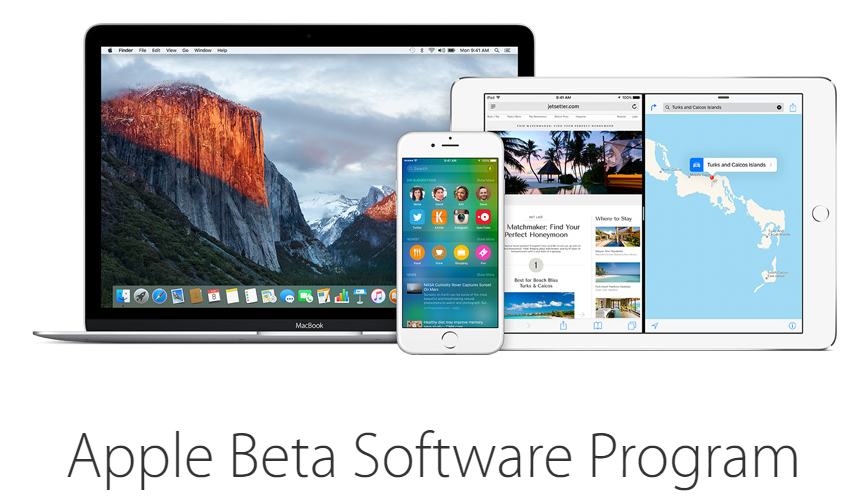
iPad mini2にiOS 9のパブリックベータ版をインストールさせてみた

iOS 9のβテストが一般人向けにも始まったということで、家でしか使ってないiPad mini2にインストさせてみました。


まずiTunesでインストさせるiOS端末のデータのバックアップをアーカイブさせます。
(そんなことしなくてもiCloudから勝手に復元されると思いますが


できたら、次にインストールさせるiOS端末からhttps://beta.apple.com/profileへアクセスし、プロファイルをダウンロードします。
すると、上の画像のように「インストールするか?」と言わますのでインストールをタッチします。

また言われるので、インストールをタッチ。

そしたら再起動します(正確には させられます。


起動したら、また設定→一般→ソフトウェア・アップデートへアクセスします。
iOS 9 Public Betaと出ているので、データをダウンロードします。ちなみにデータの容量は筆者の場合、1.5GBでした。
それが終わると画像のように表示されます。


あとは今すぐインストールをタッチし、iOS 9を楽しむだけです。
しかしベータテスト版なのでアプリが起動しなかったり、起動してもクラッシュしたりと不具合があるので気をつけねばなりません。

なおパブリックベータ版は機密情報になっており、ベータテストに参加してる人以外へソフトウェアの話をしたり、スクリーンショットを公開することは規約違反になります。

その点、お気をつけてください。