‏إظهار الرسائل ذات التسميات flash xperia. إظهار كافة الرسائل

السبت، 2 ديسمبر 2017

Guide How to Flash / Upgrade Sony Xperia Firmware Using Sony PC Companion.

Guide How to Flash / Upgrade Sony Xperia Firmware Using Sony PC Companion.

Flash Sony Xperia Using Sony PC Companion. If you want to flash or upgrade your Sony Xperia device, you can use this guide. This guide will show you How to Flash / Upgrade Sony Xperia Firmware Using Sony PC Companion. If you want to flash your Sony Xperia device using the other method, you can use this guide, How to Flash or Upgrade Firmware All Sony Xperia Smartphone Using Flash tool.

Guide Flash or Upgrade Sony Xperia.

  1. Download and Install Sony PC Companion in your computer.
  2. Then launch this program.
    • Actually, From here you can update your firmware, but when you connect the Sony Xperia, it must be switched on and not in security or password screen.
  3. Then at the support zone click Start.
    flash Sony Xperia Z3 Tablet Compact
    flash Sony Xperia
  4. If this is the first run, PC Companion will download some files.
  5. Once step 2 passed, your window will appear like this picture shown below.
    flash Sony Xperia Z3 Tablet Compact
    flash Sony Xperia
  6. On this window, select Phone / Tablet Software Update. then click Start.
    flash Sony Xperia Z3 Tablet Compact
    flash Sony Xperia 
  7. On the pop up window, select repair my phone/ tablet.
    flash Sony Xperia Z3 Tablet Compact
    flash Sony Xperia 
  8. If you using laptop or notebook, Connect your laptop to power supply since the update process.
  9. On the next screen, give tick on "I Understand that I need to know....", then click Next.
    flash Sony Xperia
  10. A warning window appears on screen, that say Data (Contact, Messages, Bookmarks,Calendar events, and setting) stored on Internal storage will be lost. So you must always backup all data and file. When you ready, click Continue.
  11. flash Sony Xperia Z3 Tablet Compact
    flash Sony Xperia
  12. On the next step, give tick the box and press Next to continue.
  13. Now PC Companion is preparing.
    flash Sony Xperia Z3 Tablet Compact
    flash Sony Xperia
  14. On the next screen, give tick on "I have read and understood ...." then click Continoue.
  15. Then click Next.
  16. Now select phone / tablet model. you can search it on search box by type your phone model (Sony Xperia).
    flash Sony Xperia Z3 Tablet Compact
    flash Sony Xperia 
  17. Then click Next.
  18. Following the instruction step to prepare the phone / tablet for the update.
    flash Sony Xperia Z3 Tablet Compact
    flash Sony Xperia

    • Disconnect the USB cable from your Sony Xperia device and the computer.
    • Turn Off your device and wait for 5 seconds.
    • Connect the USB cable to the computer.
    • Press and hold the volume down key on your device while connecting the USB cable.
    • Wait until application automatically proceed to next step.

  19. Once your Sony Xperia device detected by PC Companion downloading process will start automatically. then upload the new firmware to your Sony Xperia device.
  20.  When PC Companion finished with update process, disconnect the Sony Xperia device and switch it on.
  21. Now your Sony Xperia device is in factory condition, 
  22. The custom data is erased and password protection is removed.
  23. Congratulation, your Sony Xperia firmware is update now.

[Guide] How to Flash or Upgrade Firmware All Sony Xperia Smartphone Using Flash tool.

[Guide] How to Flash or Upgrade Firmware All Sony Xperia Smartphone Using Flash tool.

Flash or Upgrade Firmware All Sony Xperia Smartphone. This guiide will show you How to Flash or Upgrade Firmware All Sony Xperia Smartphone Using Flash tool.. You can use this guide to fix a device problem, such as bootloop, bricked, stuck on android logo or any other error. Now follow this tutorial guide below.

Using Flashtool To Upgrade / Flash Xperia Firmware.

This guide is show you how to using flash tool step by step to flash or install firmware to your Sony Xperia devices. Follow this guide carefully to get the perfect result .
  1. Fisrt step you must download and install the latest flash tool from here.
  2. When finished download, now you must install this flash tool on your PC.
  3. If you using windows 8 or windows 8.1 you must follow additional guide to insall flash tool
    • Click Start > Run
    • On the dialogue box appear you can type : shutdown.exe /r/o/f/t00
    • Now make the following selections to boot into the Start Up Setting screen : troubleshoot > Advances options > Start Up settings > restart.
    • When your windows 8/8.1 restart, select number 7 i.e . “Disable driver signature enforcement”
    • Now your windows 8/8.1 will start with Disable driver signature enforcement disabled until the next reboot.
    • Ok, flashtool driver now can be installed here
    • And windows 8/8.1 will warn that the driver is not signed and will require you to confirm the installation
    • Once your flashtool complete installed, you must reboot or restart your windows 8/8.1
  4. After you finished installed flashtool, now launch this program window, and if flash tool successfully opened you should see windows like picture shown below.
  5. Then navigate to tools > bundles > create.
    flash tool sony xperia
    flash tool sony xperia
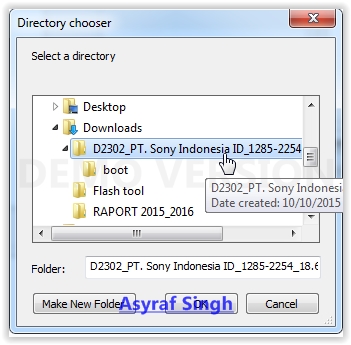
  6. Now you must choose the folder where you save your firmware files, you can click the button show on picture below.
    flash tool sony xperia bundler
    flash tool sony xperia bundler
  7. Then click OK (this image below is for an example, this use D2302)
    firmware sony xperia - flashtool xperia
    firmware sony xperia - flashtool xperia
  8. On picture show phone model (for an example is D2302). And the bundler now include all of the Sony Xperia firmware files.
    phone model - flashtool xperia
    phone model - flashtool xperia
  9. Now, you must select your device by double click on device form to get list of device.
    device selector - flashtool xperia
    device selector - flashtool xperia
  10. For this guide guidebelajar use Sony Xperia Z3+ or Z4, with ID  E65xx.
  11. device selector - flashtool xperia
    device selector - flashtool xperia
  12. Now, you can double click again on name of your device to select variant on variant selector.
    variant selector - flashtool xperia
    variant selector - flashtool xperia
  13. Now you must input branding and firmware version number into the appropriate form.
  14. If you want know what is your firmware version and branding, you can check this detail on the actual firmware you downloaded before.This picture is an example for Sony Xperia M2, If you use another version may be different.
    xperia firmware file name - flashtool
    xperia firmware file name - flashtool

  15. Highligt all file listed on folder list (use ctrl + click), and move to the right of windows. Then click create button. This picture is an example for Sony Xperia M2, If you use another version may be different
    highlight firmware file - flashtool sony xperia
    highlight firmware file - flashtool sony xperia
  16. And now wait the process. Flashtool will start creating FTF firmware file, a progress bar will shown at below.
    creating FTF firmware file - flashtool sony xperia
    creating FTF firmware file - flashtool sony xperia
  17. When your FTF firmware file nhas been complied, you will see the message, bundle creation finished.
    bundle creation finished - flashtool sony xperia
    bundle creation finished - flashtool sony xperia
  18. Make sure your FTF firmware file has been created, to check it you can go to your folder location on your computer.
    • C;\users\your PC name\.flashtool\firmware
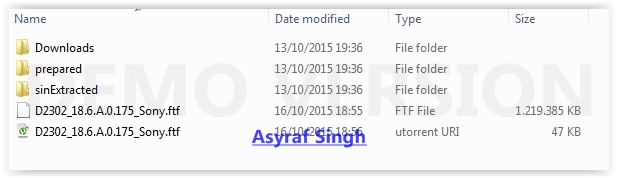
  19. And you should see folder like this.
    FTF firmware - flashtool xperia
    FTF firmware - flashtool xperia
  20. To start flash your Sony Xperia device, click the lightning bolt in the top left of flashtool windows.
    start flash sony xperia device
    start flash sony xperia device
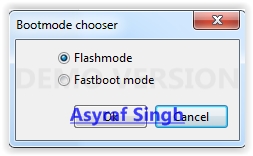
  21. Select flashmode on the bootmode chooser, then click OK.
    bootmode chooser flashtool xperia
    bootmode chooser flashtool xperia
  22. Now select the firmware build version that you want to flash from the fiirmware pane windows. Then click flash button on left bottom. This picture below is an example for Sony Xperia M2,  If you use another version may be different. 
    firmware selector flashtool sony xperia
    firmware selector flashtool sony xperia
  23. And you will see this message on flashtool,  preparing files for flashing.
     preparing files for flashing - flashtool sony xperia
     preparing files for flashing - flashtool sony xperia
  24. It will take around 60 seconds for the pop-up window appear. And now it's time for you to connect your Sony Xperia device.
    wait for flashmode - flashtool sony xperia
    wait for flashmode - flashtool sony xperia
  25. Make sure your Sony Xperia devices is power off.
  26. Then, Hold the "Volume down" button whilst connecting USB cable.
  27. Once the Pop Up windows disappears and flashing process has started, now you can release the volume down button.
  28. For an older sony xperia device, replace voleme down with back button (xperia ray)
  29. When the flashing process is finished, you can see message on flashtool
    • Flashing finished
    • Please unplug and start your phone.
  30. Finish.